Adding Attachments to a Wholegood Master to print with Sales Order or Invoice
If you need to have a document print with the Sales Documents for a wholegood, you can add the document as a PDF attachment to the Wholegood Master and configure it to print automatically when printing the sales documents.
To add and configure the attachment for Printing, navigate to: Wholegood>Find>Wholegood
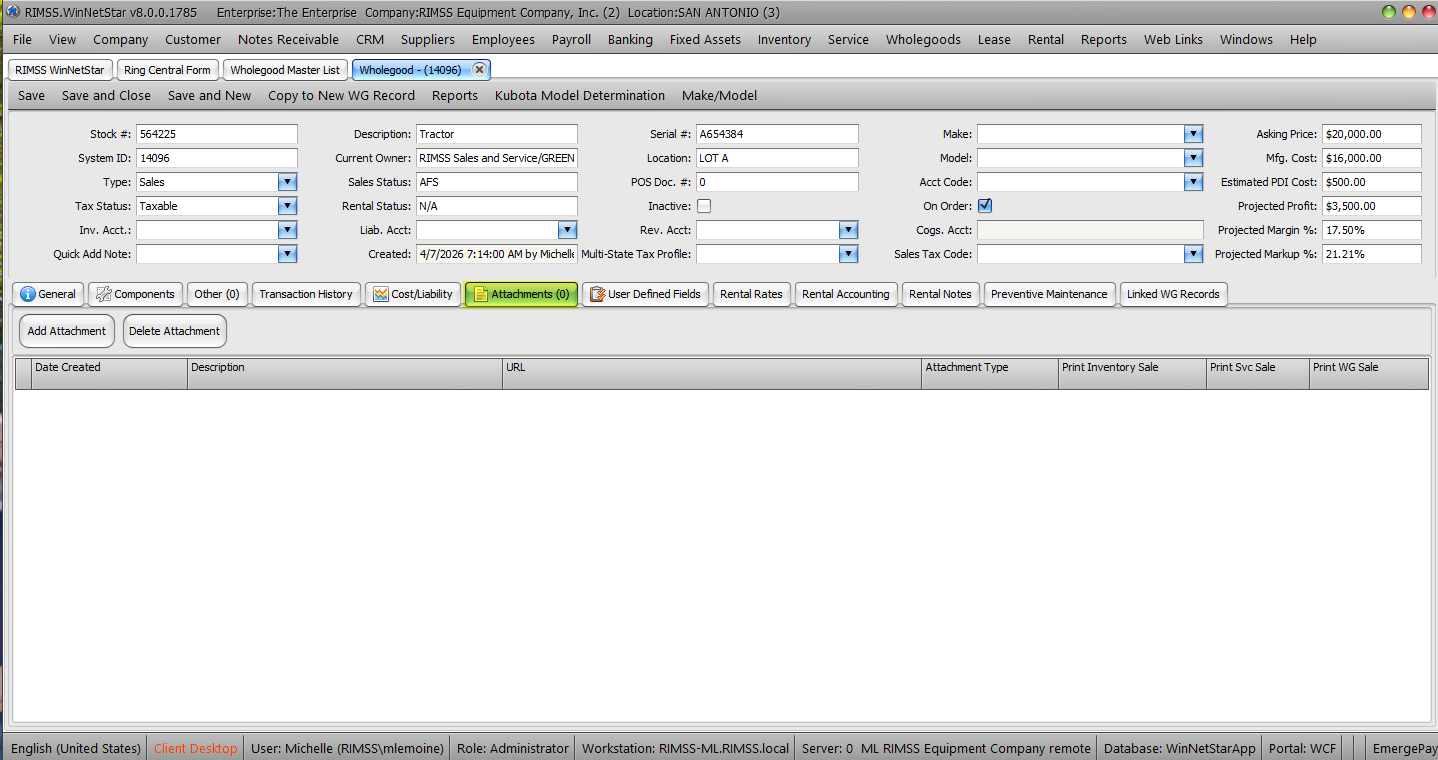
Double click the wholegood in the list to open the Wholegood Master record. Navigate to the Attachments tab.
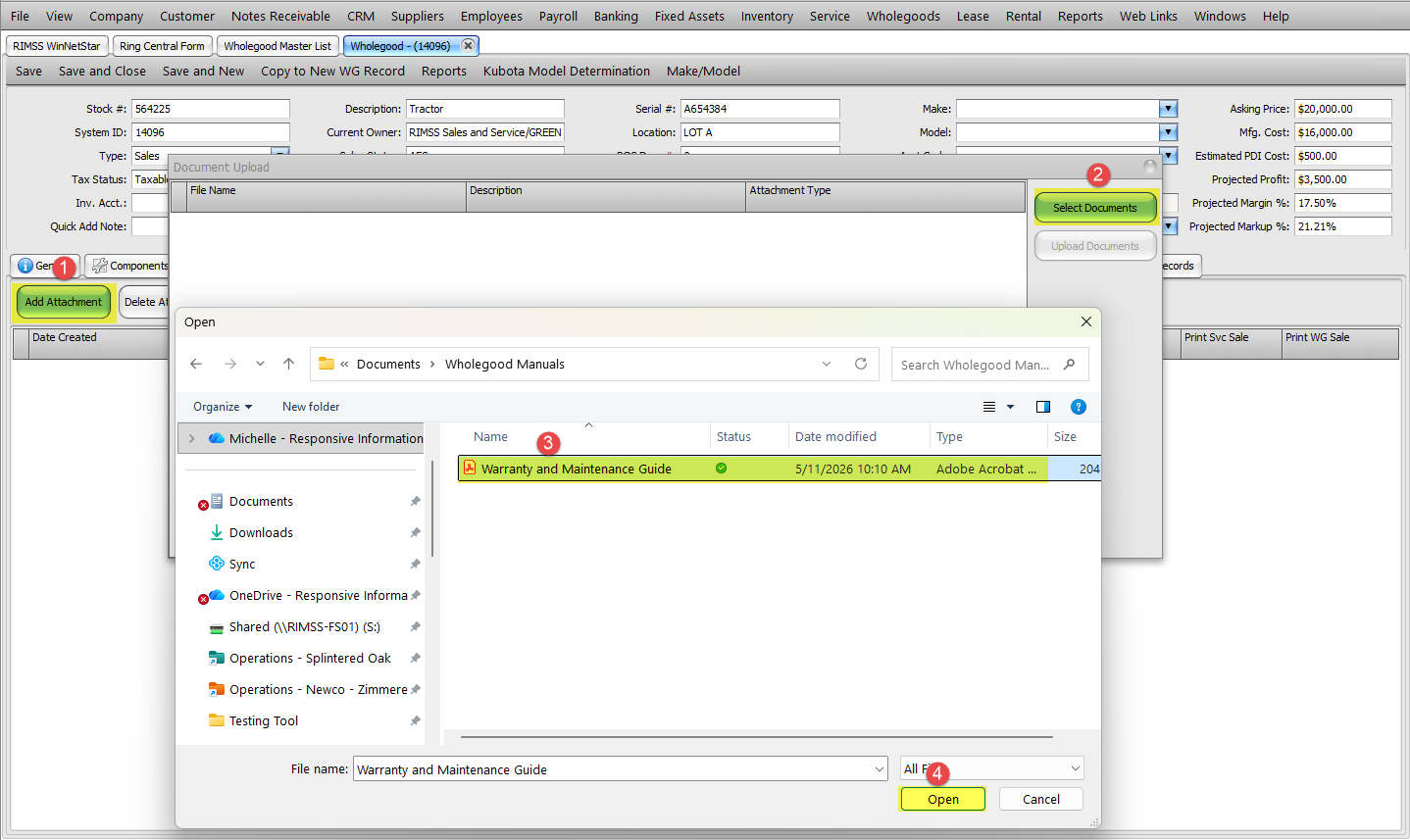
Click on "Add Attachment". Click to "Select Documents" in the pop-up, navigate to the PDF file, select the file, and click to "Open".
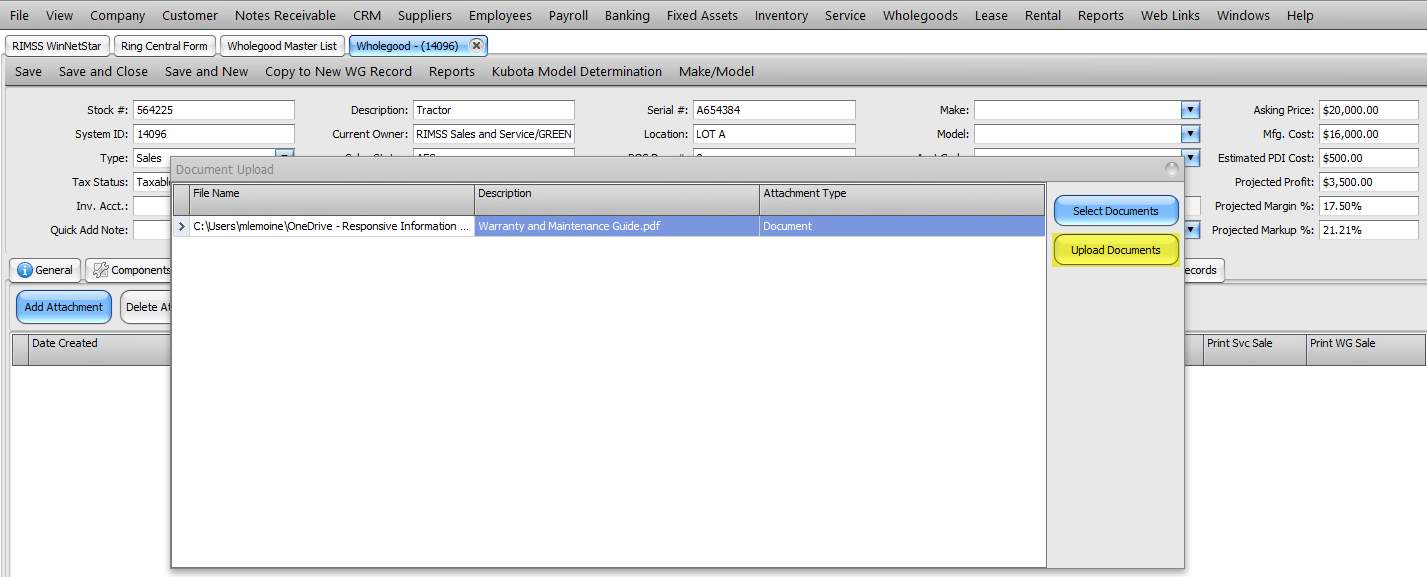
Once your attachment is populated in the pop-up, click "Upload Documents".
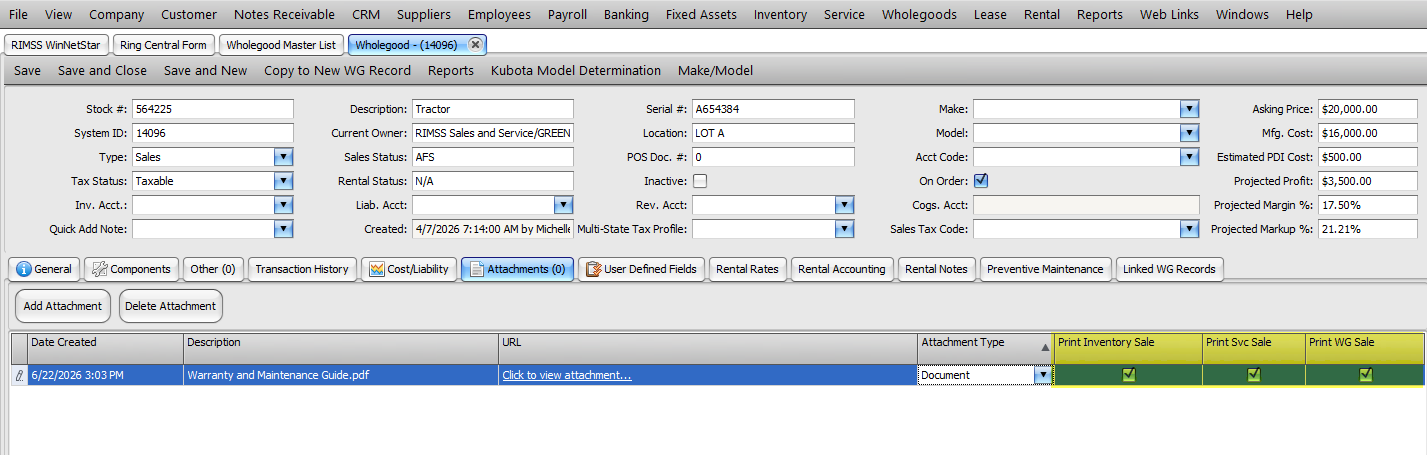
You will see the attachment populate on the Attachments Grid. In the grid are columns with selection boxes for Print Inventory Sale, Print Svc Sale, and Print WG Sale. Click the selection boxes for the documents types that you want the attachment to print.
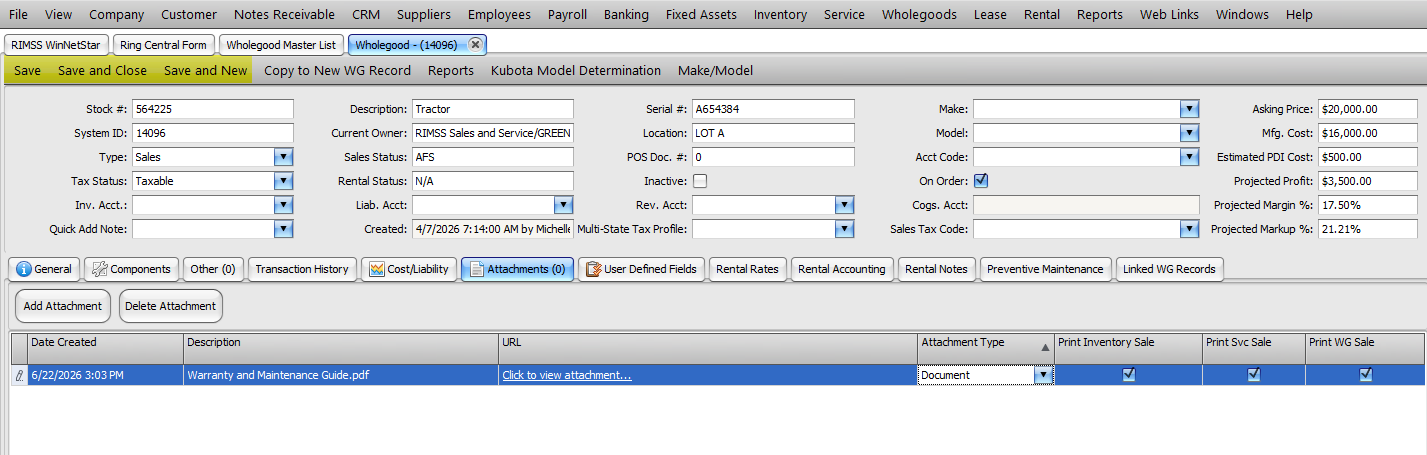
Click Save, Save and Close, or Save and New to save the attachment and print settings on the Wholegood Master Record.
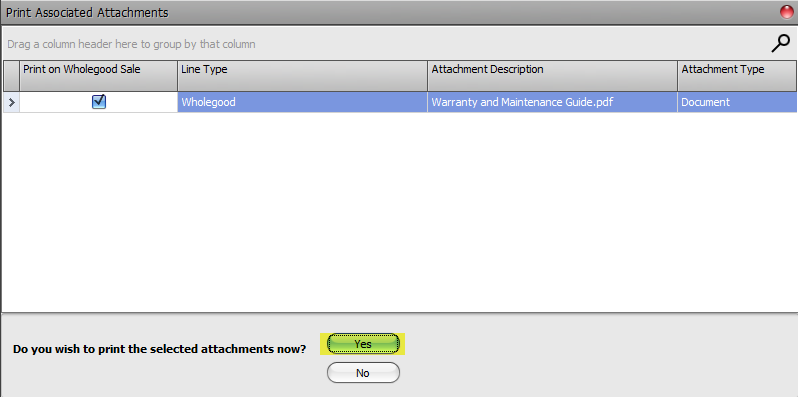
Once this is configured, when you add the wholegood to one of the selected document types and either print a Sales Order or settle and Invoice, you will get a pop-up to print the attachments with the document. Clicking Yes will prompt a preview of the document with print options.