Adding Core Charges to Part Master Records
Core Charges are set up directly on a Part Master Record. The Total Price of the Part will include the core charge in the setup. Pricing for the core and accounting for the sale of the core and the part will be separate.
NOTE: If you are adding or removing a core charge after the part has been received, you will likely need to update the average cost of the part to account for the cost of the core.
To add a core charge to a Part Master Record, you will need to navigate to the Pricing Tab of the part record. The core charge can be added or removed at the time you are creating the part record or at any time after the part is created.
In the Raw Mfg. Values area of the Item Pricing Tab, there are 2 columns for entering data that determine the pricing of the part and the core charge.
P-Core Column = Core Charge
Total Column = Part Price + Core Charge
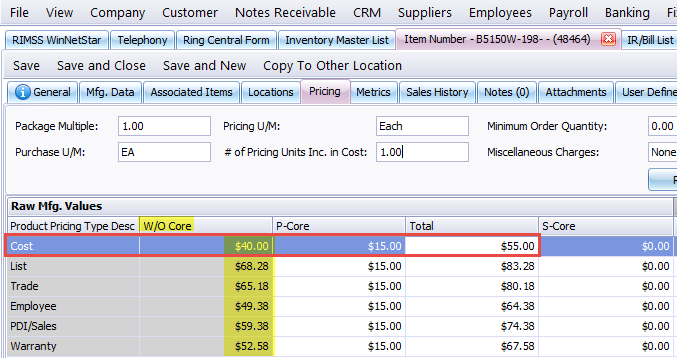
The W/O Core Column is calculated from the data entered to the P-Core and Total columns and shows the price of the part without the core charge included.
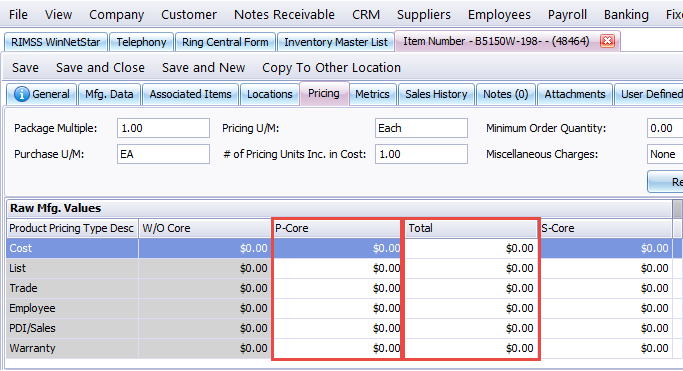
In the example below, we have a part with the following setup:
Part Cost = $40.00
Core Charge = $15.00
Total Price with Core = 40.00 + 15.00 = $55.00
Enter the Core Charge into the P-Core column and the Total Cost with Core into the Total Column. Depending on your settings, you may need to add the core charge to each pricing level or it may auto-populate into all levels for you. For different price levels, your total will be different for each row in the pricing grid. You may enter different core charges on different price levels if you are able to edit each level individually.
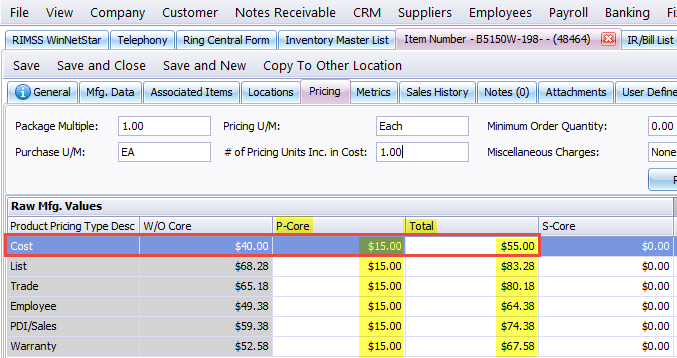
The W/O Core column automatically calculates the price of the part with the following formula:
Total - P-Core = W/O Core
$55.00 - $15.00 = $40.00
You can verify that you have entered the amounts correctly by ensuring the W/O Core column reflects the part price without the core charge included.
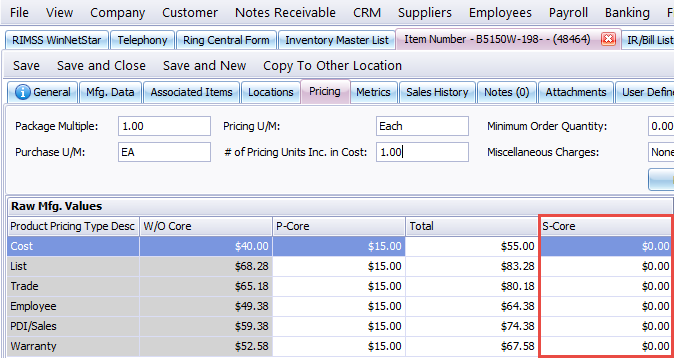
If you have a Secondary Core Charge that you would like to maintain, you can enter the amount into the S-Core column. This data is for reference only and will not be used for any pricing in RIMSS.
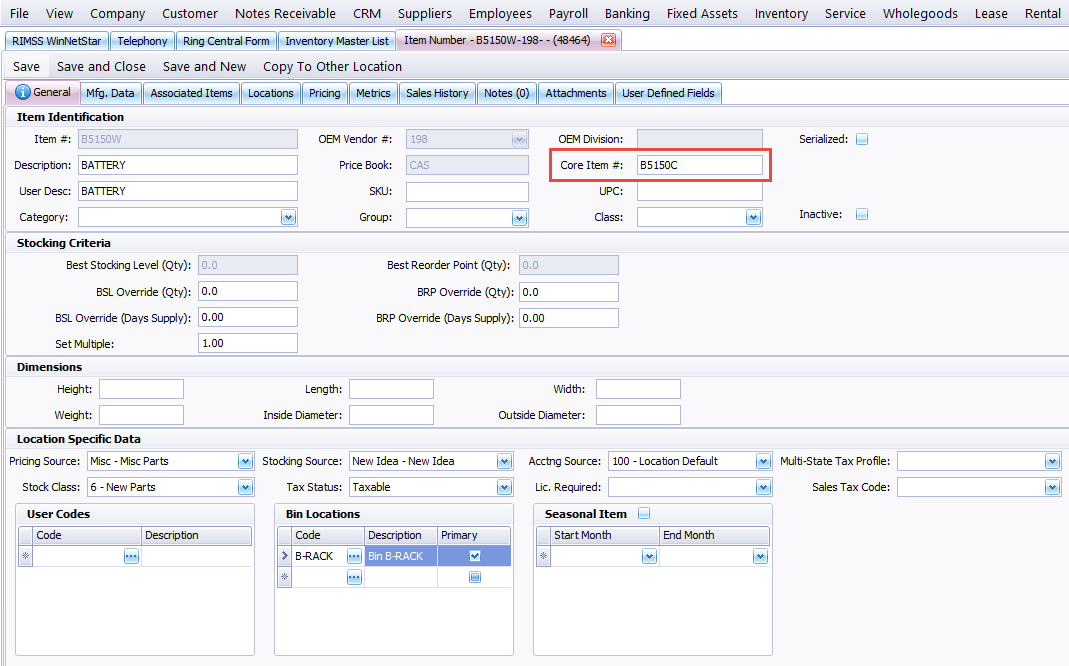
If you have a separate Core Part Number that you would like to maintain, you can add the number to the Core Item# field on the General Tab of the part record.
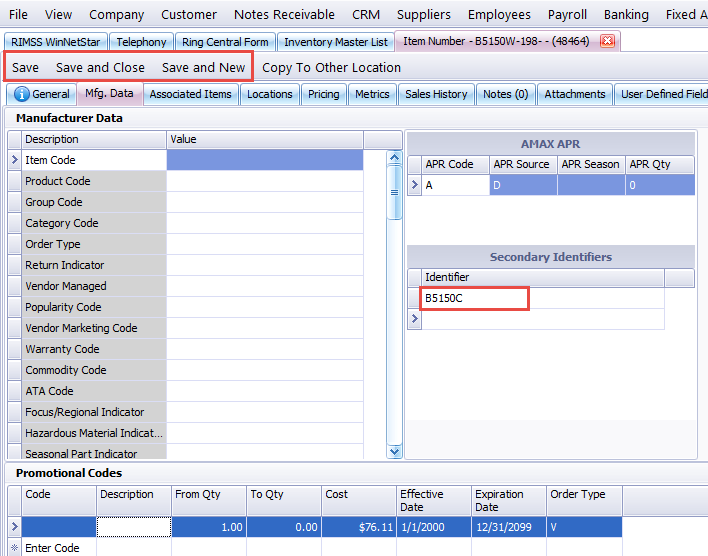
If you would like to be able to search for the Core Item# directly, you can also add the number to the Secondary Identifiers on the Mfg. Data tab of the part record. Ensure you save the part record after you complete the updates.
After the updates are complete and saved, check to ensure the average cost is aligned with the Total cost instead of the W/O Core cost.
